
How to control alt text with MetafieldsUpdated 8 days ago
Overview
At this time, SmartAlt doesn’t offer a “suppress these words only for certain product types” setting (for example, hiding specific terms for mugs but keeping them for hats). The recommended workaround is to control what SmartAlt is allowed to use by providing product-type-specific wording in Shopify metafields, then telling SmartAlt to use those metafields via Specific metafields in Settings.
INFO
What this achieves: instead of trying to block words after SmartAlt generates them, you provide the approved words per product type—so SmartAlt uses only what you’ve supplied.
1) Start from the SmartAlt Dashboard
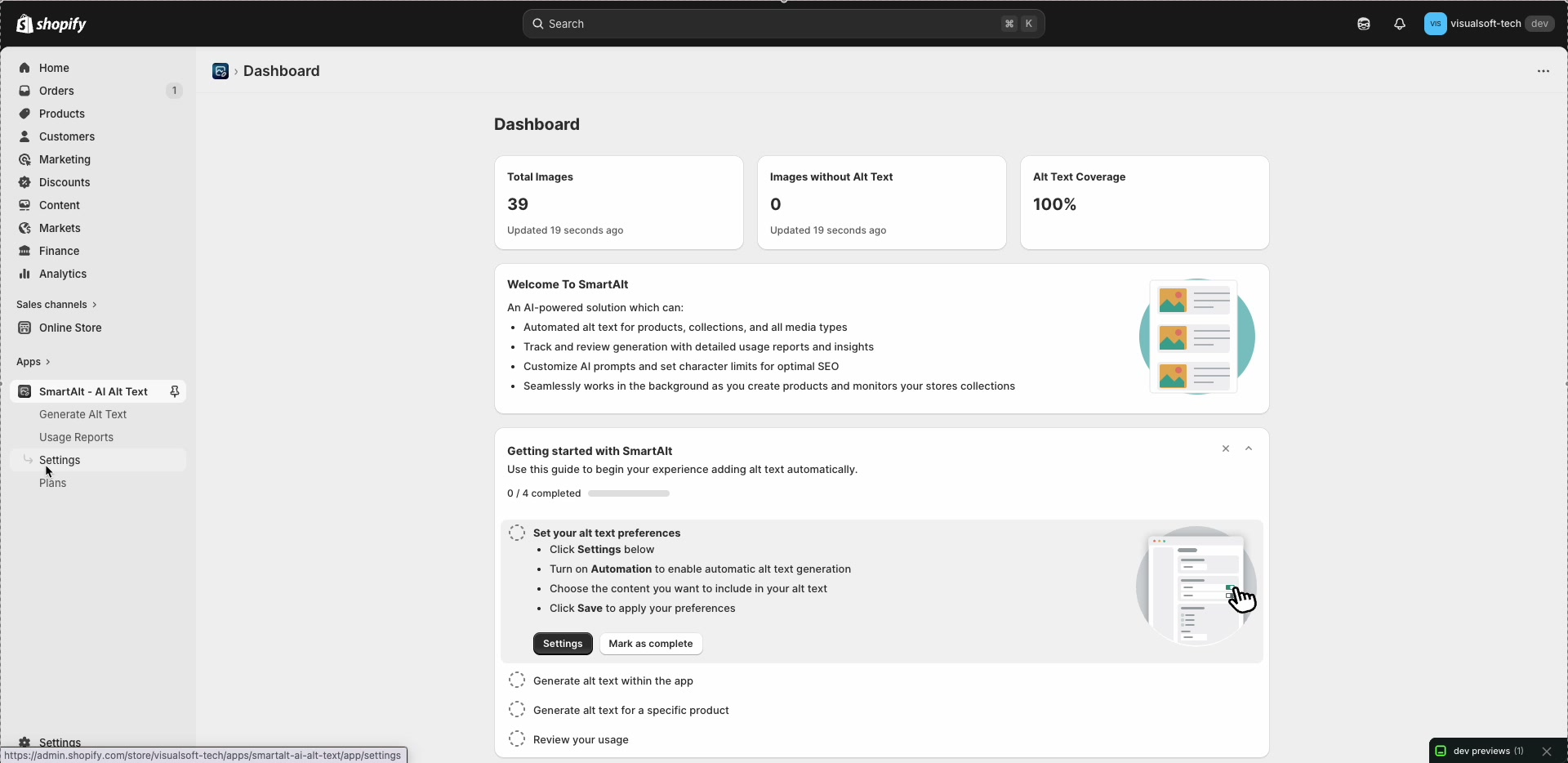
In your Shopify admin, open Apps → SmartAlt - AI Alt Text. The Dashboard gives a quick overview of your image coverage, including cards like Total Images, Images without Alt Text, and Alt Text Coverage.
2) Turn on “Specific metafields” in Settings
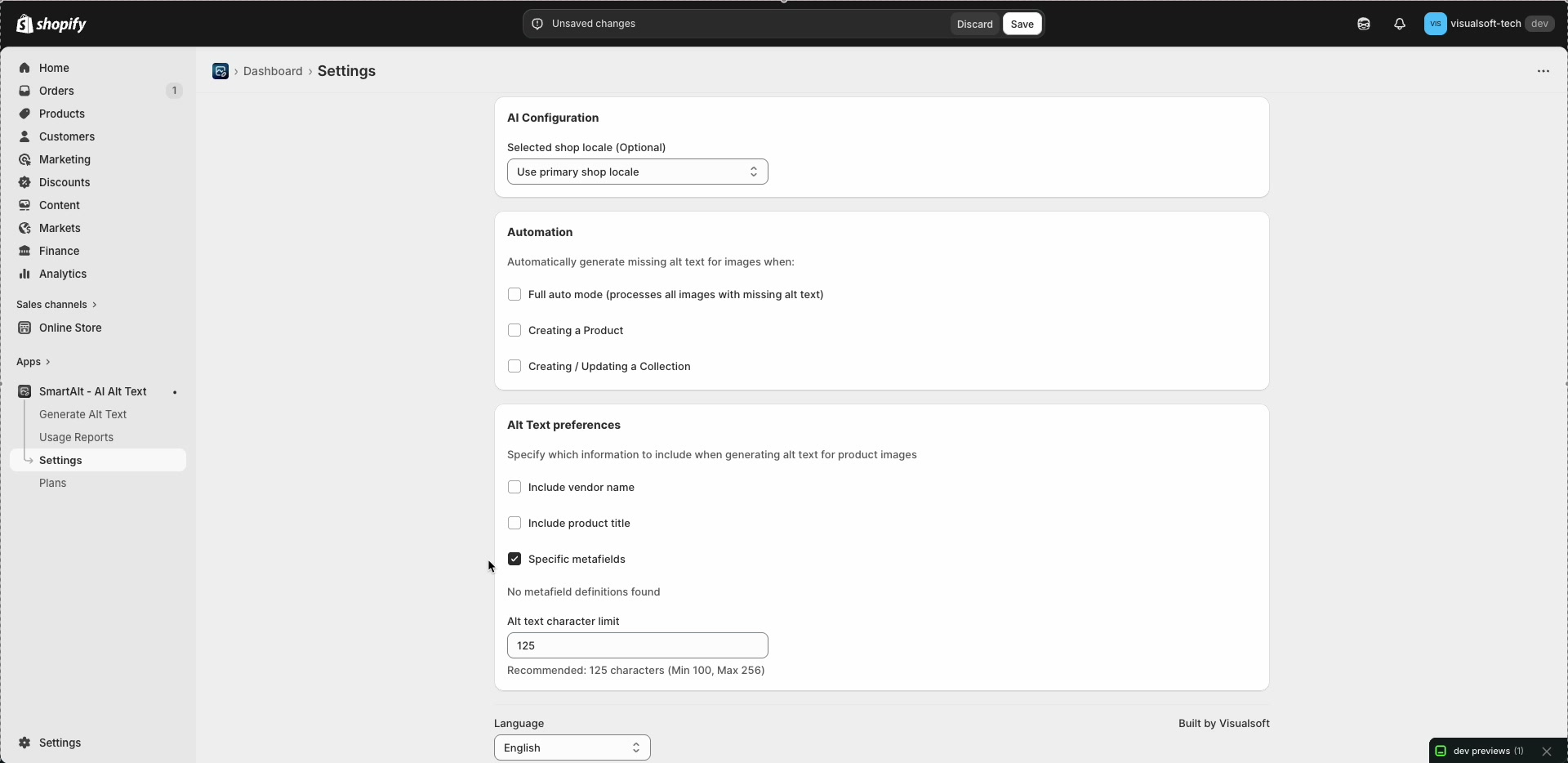
From the SmartAlt left navigation, click Settings. In Alt Text preferences, enable Specific metafields.
When enabled, SmartAlt will look for the metafield key(s) you provide and use that content as an input when generating alt text.
1. Open SmartAlt Settings - Go to Apps → SmartAlt - AI Alt Text → Settings.
2. Enable Specific Metafields - Scroll to Alt Text preferences and tick Specific metafields.
3. Enter your metafield key - In the metafield key field that appears under Specific metafields, enter the key for the metafield you want SmartAlt to use.
NOTE
In the walkthrough, this is where a metafield key is entered after turning on Specific metafields.
4. Save your changes - Click Save at the top of the Settings page.
TIP
If you also use Include vendor name and/or Include product title, keep your metafield wording short and consistent so the final alt text stays within your Alt text character limit.
3) Create metafields for each product type (Shopify)
Next, create Shopify metafields so you can store the approved words per product type/category. The workflow used in the workaround is:
Create one metafield per product category (or product type),
Put the words you DO want to appear in that metafield,
Assign it on the product so SmartAlt can read it.
NOTE
The exact location of metafield creation in Shopify can vary depending on your admin version, but you’ll be creating metafield definitions for Products and then filling those fields on each product.
Recommended naming approach
Use a clear naming pattern so your keys are easy to manage. For example:
alt_text_words_baseball_capsalt_text_words_mugsalt_text_words_tshirts
WARNING
SmartAlt uses the metafield key you enter in Settings. If the key is mistyped (or the metafield isn’t assigned to the product), SmartAlt can’t use it during generation.
4) Fill in the metafield values on products
Open a product in Shopify and set the metafield value for that product’s category/type. This is where you place the approved wording you want SmartAlt to use (for example: “stainless steel water bottle”, “navy branded baseball cap”, etc.).
TIP
Keep the metafield text focused on what matters for accessibility: what the image shows. Avoid keyword stuffing—alt text should be descriptive first.
5) Generate alt text using SmartAlt
Once Specific metafields is enabled and products have metafield values, generate alt text as you normally would:
In SmartAlt, go to Generate Alt Text to run generation and review results.
Or, from Shopify’s Products list, select products and use More actions → Apps → Manage with SmartAlt, then click Generate Alt Text.
How this “suppresses” words in practice
This approach doesn’t remove words from existing alt text automatically. Instead, it prevents unwanted words from being introduced by making the alt text input product-type specific:
If a product type should not mention a certain term, simply don’t include it in that product type’s metafield value.
If another product type should include it, include it only in that metafield value.
Q. What if I want multiple categories to share the same wording?
A. You can reuse the same metafield key/value strategy across products. If you don’t need different wording per category, use a single metafield definition and populate it consistently across all relevant products.
Q. What if SmartAlt shows “No metafield definitions found” after enabling Specific metafields?
A. This usually means Shopify doesn’t yet have a product metafield definition available (or it hasn’t been created/assigned in a way SmartAlt can detect). Create the product metafield definition in Shopify first, then return to SmartAlt Settings and try again.
Q. Will this change alt text for collections or other media types?
A. The workaround described here is focused on controlling wording for product images by storing approved text on the product via metafields, then letting SmartAlt use it during generation.